
Publishing & distribution
Podcast on YouTube: do you need to film your episodes?
Watch a sample video created locally with audio and a static image, then prepare YouTube RSS importing while keeping preview and publication distinct.
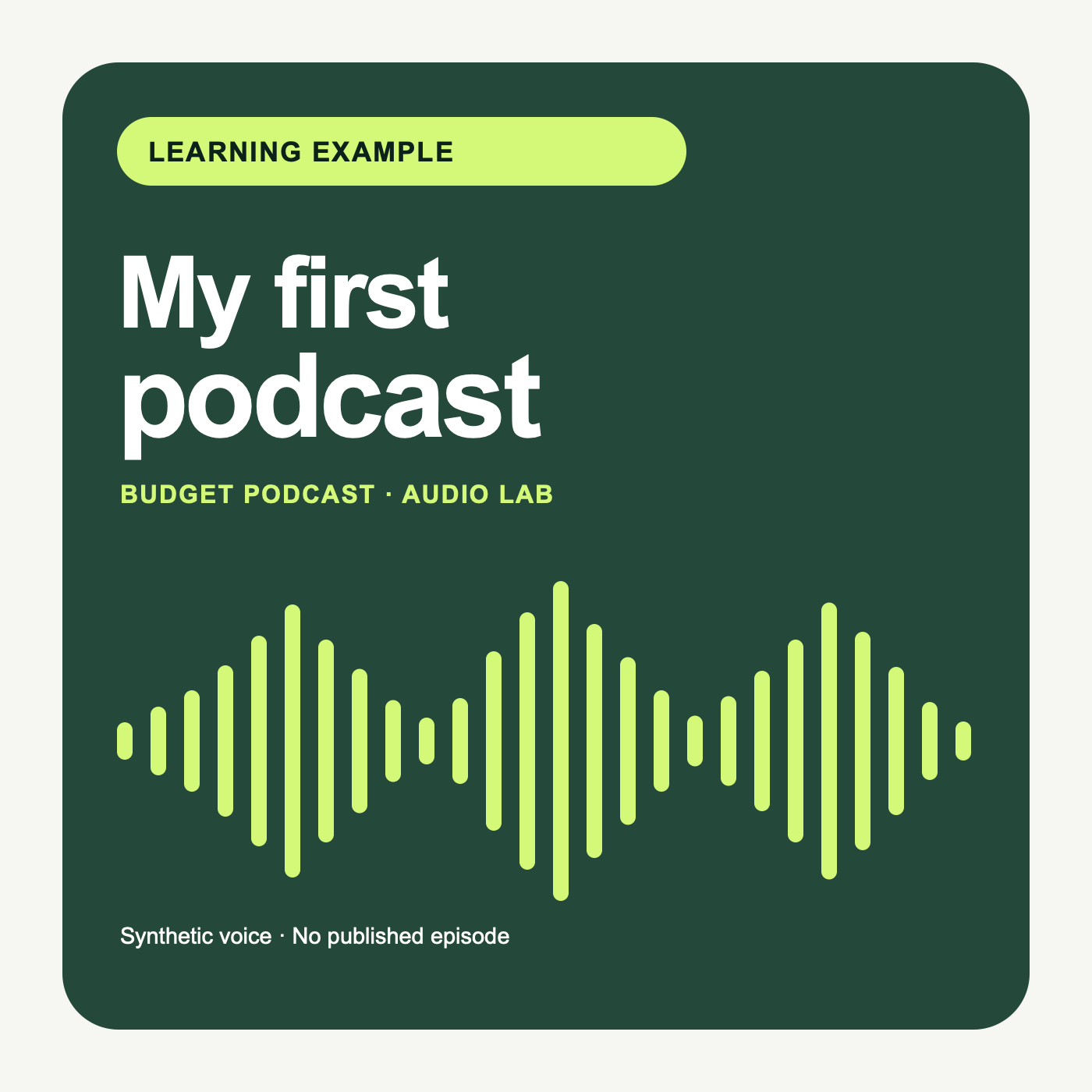
Start without a camera or your own podcast using the teaching video and downloads in the workshop. The result illustrates audio with a static image; it is not the result of a YouTube import. The official RSS procedure is explained separately, including the required accounts and checks.
Demonstration: an episode with a still image
Everything you need to practise, even if you do not have a podcast yet.
See and hear what an audio episode with a still image can look like. Use the sample video below to assess this format without filming yourself or uploading anything.
AI-generated audio · Audio credits
Check whether the format works
Listen without relying on the image
Play the audio, then the video. The same story should remain understandable while the image stays still. Our example uses no gesture, chart or object that you need to see.
Inspect the visual and the file
Download the MP4 and open it. Check the beginning and end, that the cover stays visible and that the audio is complete. On a phone, check whether the cover is still readable.
CheckpointThe image stays still throughout the spoken episode. No camera recording is needed for this format.
Prepare for a future RSS import
YouTube’s RSS route starts with your own show’s public feed and an eligible channel in YouTube Studio. The separate RSS lesson explains this structure using a teaching example; it does not describe the video above. Do not submit the lab feed to YouTube. A localhost address remains inaccessible to external platforms.
Read the separate RSS lesson
Check your answer: does this prove a YouTube import?
No. Playing this MP4 proves only that the still-image example is usable. A real RSS import would also require checking the ownership verification, imported episodes, visibility and playback in YouTube Studio. None of those account actions were performed here.
What is still needed for a real import
A signed-in YouTube channel with RSS ingestion available, your own public podcast feed and access to the email address used for its ownership verification. You would then review the imported episodes before choosing to publish them. No channel was created and no import or upload to YouTube was performed for this example.
Starting without a camera is an option
YouTube lets you publish an audio podcast with a static illustration. For an existing show, you can therefore explore this channel before adding cameras to your setup. The official documentation also presents visual formats such as audiograms.
The workshop at the top of this guide uses original synthetic audio and artwork to demonstrate a static-image video file. You can watch it and download the files without an account. This is a teaching example; it has not been imported or submitted to YouTube.
The YouTube steps below use official documentation checked on October 15, 2026. No account was created, no import or upload was performed, and no account screenshot proves a publication. A local MP4 shows the result prepared on the computer; it does not validate YouTube RSS importing.
The useful question is: what image adds something to your content? A discussion that makes sense when heard can remain audio. A demonstration may justify filming. Also consider your schedule: additional production needs to fit into your week.
Format 1: audio with a static image
Through RSS, YouTube turns audio episodes into videos illustrated with the podcast artwork and fetches new releases. It does not distribute the show to Spotify or Apple: keep managing that through your host.
We recommend this starting point if your guests prefer not to be filmed or you have limited time. Prepare readable artwork and a precise title. A title promising to show an object may disappoint if the episode only describes it.
Format 2: a simply filmed conversation
Filming can help if expressions, gestures or objects shown enrich the episode. Start with a limited trial: steady framing, enough light and controlled sound. Have someone listen to the recording before spending your budget on several cameras.
Count the setup, image checks and extra editing time. Then ask yourself what would be missing if the image disappeared. Describe essential information aloud as well so that the audio version remains useful. A camera does not replace a prepared interview or a clear voice.
Format 3: clips to introduce the episode
A clip can explain an idea or encourage someone to listen to the full interview. Its purpose differs from that of a whole episode: measure its preparation work separately. Shorts used to promote a podcast are not included in YouTube Music.
Keep an easy-to-understand list of full episodes. When choosing a clip, favour a passage that makes sense without the beginning of the conversation. Avoid a cut that changes the meaning of an answer or a hook unrelated to what follows.
Import your RSS feed into YouTube Studio
RSS ingestion is available in supported countries, including France, and depends on the channel owner’s location. A real test needs a Google account, a YouTube channel with advanced feature access, your own show’s public feed and access to the email address in that feed. Use YouTube Studio in a browser. A Spotify link does not replace your show’s RSS feed. Our workshop’s lab feed is for learning; do not submit it to YouTube.
In Studio → Settings → Channel → Feature eligibility, check access before importing. Advanced access may depend on channel history or, where eligible, ID or video verification. Those checks were not triggered for this preview. The documented procedure below was not tested in an account:
- In Studio, choose Create, then New podcast and Submit an RSS feed.
- Read the RSS ingestion terms and the on-screen instructions before continuing.
- Paste the feed address, then request the verification code.
- Retrieve the code from the email address listed in the RSS feed and confirm it.
- Choose the whole catalogue, episodes from a specific date or only future episodes.
- Check visibility before saving. Even when the initial import is private, this transfers files to YouTube and goes beyond a local preview.
The initial import is private and may take a few days. When you receive the confirmation message, check the episodes before choosing Publish under Content, then Podcasts. Publication and visibility need to be checked separately from the completion of the import.
If your channel already contains some episodes, set a start date after the last existing episode to avoid duplicates.
Check rights and advertisements in the files
The RSS help page says imported podcasts cannot contain advertisements. It does, however, allow branded content, including promotions read by the presenter, provided it is disclosed and follows the applicable rules. Ticking a box does not authorise every advertisement.
YouTube also prohibits third-party ads in formats for which it offers an equivalent, including pre-rolls, mid-rolls and post-rolls. Check the files actually served by the feed, especially if your host inserts ads into them. Prepare a suitable version if necessary before importing.
Check your rights to music, illustrations and third-party content. For an authorised partnership, disclose branded content in Studio following the documentation. The official rules below explain the conditions to consult for your situation.
For synthetic content, also check YouTube’s disclosure rules: realistic content or significant changes that could mislead viewers about a person or event must be disclosed. Our example identifies its synthetic voice in the audio and description. No YouTube disclosure setting was enabled because no upload took place.
Check the episodes before sharing the link
Open a recent episode and an old one. Listen to the beginning, a transition and the ending. Check that the illustration matches the content and that the audio remains understandable. Make these checks from the public-facing page when it is accessible.
- Check video visibility and the absence of duplicates.
- Browse the catalogue and check titles.
- Read any warnings displayed in Studio.
- Test description links to the website and other ways to listen.
- Confirm that the introduction works without prior visual context.
Measure the time added to your production
Plan a short trial series. For each episode, record the time spent solely on YouTube: preparing the image, setting up video if needed, extra editing, checks and publishing. This record is your labour cost, even without buying equipment.
Separate the initial setup from tasks repeated for each episode. Record any rework and its cause too. If video prevents you from regularly finishing the show, simplify the format or reduce the visual elements. Your own timings will be more useful than a universal estimate.
Allow enough perspective when reading results
Impressions are thumbnail displays counted by YouTube. Their click-through rate indicates how often those displays lead to a view; not all views come from these impressions. Watch time and retention add to this initial reading.
Compare episodes of the same type and take their traffic sources into account. A handful of impressions or a small change in click-through rate is not enough to identify a better format. YouTube recommends waiting for enough data before deciding.
Retention helps identify passages viewers leave or rewatch. Listen to these moments again: a long introduction, a mismatched title or an unclear explanation may need a correction. A rewatched passage does not by itself prove that viewers enjoyed it. Then choose one specific change to try.
Frequently asked questions
Before expanding production, keep a simple process you can check. Here are the points to anticipate when connecting an existing show to YouTube.
| Question | Answer |
|---|---|
| Do I need to leave my host? | No. Connect the existing RSS feed to YouTube and keep your host to publish the podcast and manage its other destinations. |
| Is an audio correction picked up automatically? | No. Re-uploading from the RSS feed creates a new video and makes the old one private. Check the new version. |
| Can I stop automatic importing? | Yes: disconnect the RSS feed in the podcast details. New episodes will no longer be imported. Check the visibility of existing videos separately. |
| Does filming guarantee more listeners? | No. Assess your show’s results and the extra work before investing or adding more formats. |
Official sources
Guide updated on 16 October 2026. Check the sources below: plans and interfaces may change.
- YouTube: distribute an audio podcast and understand the formats, new tab
- YouTube: how RSS importing works, its limits and corrections, new tab
- YouTube: countries that support distribution through RSS feeds, new tab
- YouTube: advanced feature access for RSS uploads, new tab
- YouTube: connect, publish or disconnect an RSS feed, new tab
- YouTube: disclose branded content, new tab
- YouTube: disclose altered or synthetic content, new tab
- YouTube: rules for embedded third-party advertising and sponsorships, new tab
- YouTube: interpret impressions and click-through rate, new tab
- YouTube: understand watch time and retention, new tab